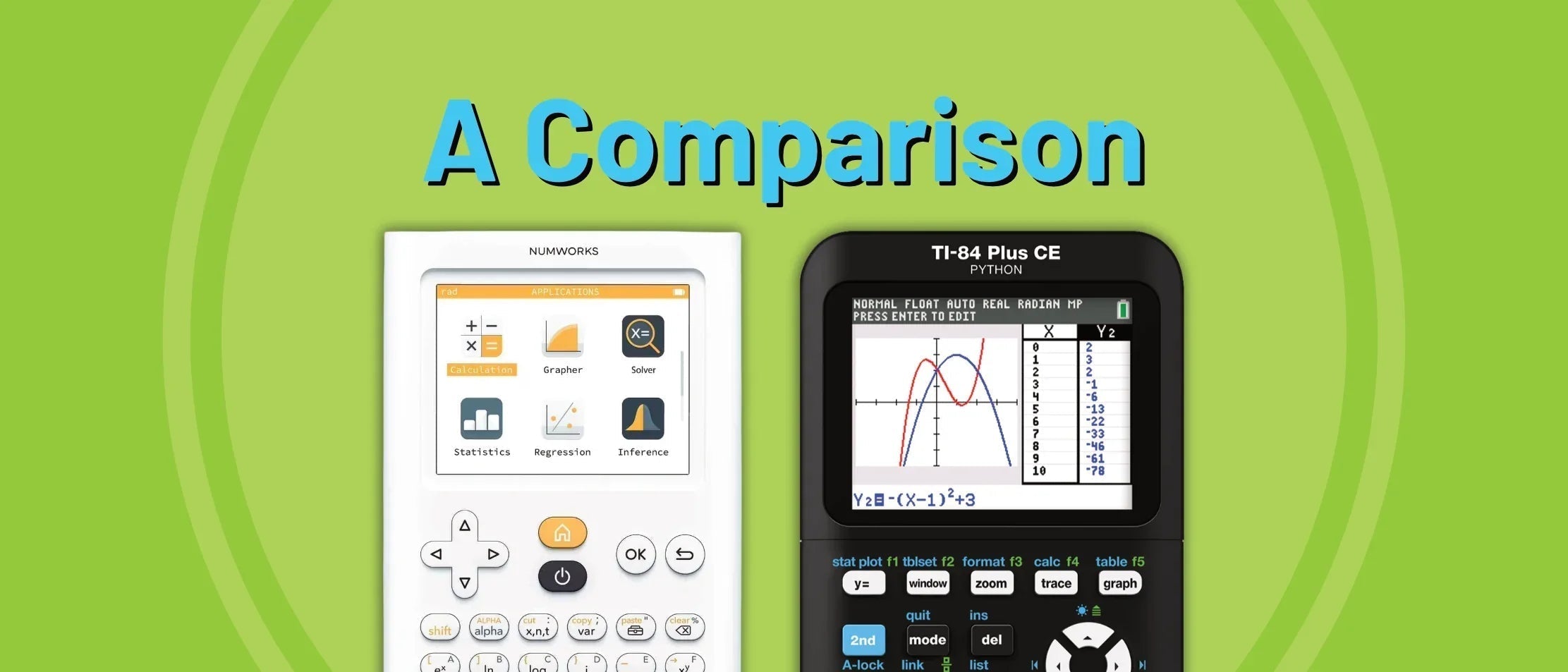
The Ti-84 Plus CE Graphing Calculator and the NumWorks Graphing Calculator are two different solid options for your classroom. Both can be used on many standardized tests, but choosing the right one may be something to think about as each excels in different ways. The importance of these differences depends on your needs and priorities. We'll go through a few differences in functionality, price, features, use, CAS capabilities, and accessibility to assist you in the decision making process.
What are the similarities?
The TI-84 Plus CE and NumWorks graphing calculators have quite a few similarities, namely in their screen size and quality, affordability, accessibility, and key functions. There are still small differences among their similarities that we'll go over in detail.
Physical Characteristics
The NumWorks graphing calculator is overall smaller, thinner, and lighter than the Ti-84 Plus CE. The NumWorks graphing calculator and Ti-84 Plus CE provide a near-identical screen. Both screens are 2.8" diagonally. When looking at the calculators straight on, the screens may appear slightly different due to the bezels around them. The bezel on the NumWorks calculator is much thinner than the Ti-84 Plus CE. Here's a size comparison between the most popular graphing calculators.

Affordability
Graphing calculators will always be a sizable investment. The Ti-84 Plus CE is available for around $140. The NumWorks graphing calculator is usually available at around $100, or about the same price as a Ti-83 Plus Graphing Calculator. For teachers working with tighter budgets, larger classrooms, or low-income communities, every dollar matters. If you're only able to spend around $100 per calculator, either the NumWorks Graphing Calculator or a Ti-83 Plus Graphing Calculator may be the way to go. If you're able to spend a little more, both the Ti-84 Plus CE and the NumWorks Graphing Calculators are great options.
Accessibility
U.S. classrooms can be incredibly diverse, and making learning accessible to every student is important to educators.
Both calculators provide color enhanced screens for students to easily differentiate the information on their screen. When graphing, users can use different colors to differentiate the multiple lines on a graph. Users who have trouble differentiating certain colors can pick the colors that works best on either calculator.
On the Ti-84 Plus CE, click the "y=" button and enter the equation in the line that has the color you'd like to use. For example, if you'd like the line to appear pink, enter the equation in Y4.

On the NumWorks calculator, enter the expression in the "Grapher" app, then click the three dots next to the equation. Scroll to "Color" and select the preferred color.

For users with light sensitivities, both calculators allow you to change the brightness levels of the screen. For the Ti-84 Plus CE, click the "2nd" button and either the up (brighter) or down (dimmer) arrow to adjust the screen brightness.

For the NumWorks calculator, go to the "Settings" app, scroll down to brightness option and use the left (dimmer) and right (brighter) arrows to adjust the screen brightness.

Available Languages
Both the NumWorks Graphing Calculator and the Ti-84 Plus CE support English, French, Dutch, Portuguese, German, and Spanish.
The NumWorks graphing calculator supports Italian and does not support Swedish.
The Ti-84 Plus CE supports Swedish, but does not support Italian.
Other key functions
Shift/2nd and Alpha Keys
To access additional functions (top left of keys), TI-84 Plus CE users must hit the "2nd" key while NumWorks users must hit the "shift" key. To access additional letters and numbers (top right of keys), both calculators require users to hit the "alpha" button. Letters on the TI-84 Plus CE are only available capitalized. To continuously access the alpha inputs, users can hit "2nd" then "alpha" for "Alpha-lock." Letters on the NumWorks calculator are lowercased by default. If you need a capitalized letter, you must hit "shift" then "alpha." There is not an alpha-lock option on the NumWorks calculator.


Powering On and Off
Both calculators allow you to manually power off the unit and feature an auto power off feature to preserve the battery life.
To manually power the Ti-84 Plus CE calculator on, click the "on" button at the bottom left. To power it off, click "2nd" then "on" for "off."

To power the NumWorks calculator on and off, click the black power button.

Confirming Selections or "Enter"
To confirm a selection on the Ti-84 Plus CE, on the screen, press "enter."


Copy and Paste
The Ti-84 Plus CE treats the copy and paste function as a single action. To bring a previous answer or expression into the current expression, simply scroll up to the desired entry and with the entry highlighted, hit the "enter" key. This will bring the expression into the line being edited.
The NumWorks graphing calculator to use the "shift" then "cut," "copy," and "paste" buttons. You can copy or cut an expression or entry, then specify where you would like to paste said entry. You can copy and paste across different applications (ex: copy an expression in the calculation app to the grapher app).

What are the differences?
These graphing calculators are designed with differing classroom priorities, so there are a few key differences between the two. We'll cover external factors, such as the ease of use, charging ports and cables, STEM connectivity, and protective covers. We'll also cover internal factors, such as CAS capabilities, available applications and features, and STEM applications.
Ease of Use
A key difference is the ease of use and a smaller learning curve for new users of the NumWorks graphing calculator. One word that encapsulates the NumWorks calculators is intuitive. Locating and identifying the functions needed for your math problems is quick and easy when compared to other options.
Users of the Ti-84 Plus CE will usually learn the capabilities of their calculator as the functions are needed with the assistance of a manual, the internet, or another user to access the necessary menus, modes, and lists to perform a specific action. Searching on your calculator yourself is time-consuming and can be confusing with the shorthand commands listed. Comparatively, you can learn the capabilities of the NumWorks calculator within minutes of simply clicking through apps and menus. Each function is clearly defined and an example of what the function looks like is clearly displayed. No confusing shorthand commands makes it easy to identify what you can do with your calculator. Let's take a look together.
With the Calculation app open, click the toolbox button to access absolute value, nth root, and logarithm base. Each function is clearly named and an example of the function is listed for confirmation. This setup is intuitive and easier for students to identify.


You’ll find calculus functions such as derivatives and integrals in the Calculus menu. More functions are available in the subsequent menus: Complex numbers, Probability, Units and constants, Matrices and vectors, Lists, Arithmetic, Trigonometry, Decimal numbers, and Logic.

The Ti-84 Plus CE also has these functions, but locating them is not as intuitive. You can locate many of the above mentioned functions by clicking the “math” button. In the first list, “MATH,” you’ll find nth root (#5), derivative (#8) labeled "nDeriv(", and logarithmic base a (#A) labeled "logBASE(". Remember to scroll. In the second list, “NUM,” you’ll find absolute value (#1) labeled "abs(".


Applications and Features
The NumWorks graphing calculator provides users with the essentials, but the TI-84 Plus CE has many more features and applications available. Below is a list of available applications. To access these applications, click the "apps" button.
- Finance (Also available on NumWorks calculator)
- Cabri Jr. Geometry
- CellSheet
- Conics Graphing
- Vernier EasyData
- Inequality Graphing (Also available on NumWorks calculator)
- Periodic Table (Also available on NumWorks calculator)
- Polynomial Root Finder & Simultaneous Equation Solver
- Probability Simulation
- Science Tools
- Transformation Graphing

A nifty feature only the Ti-84 Plus CE has is the ability to change the background image on the graph screen! CE calculators come with 5 preloaded images for you to try. You can edit the graph screen by clicking "graph" > "2nd" > "zoom/format" and scrolling down to the "Background" line. Select your background image by using the left and right arrows, then hitting enter to confirm your option. Click the "graph" button again to view the graph screen.

Tools and Connectivity for STEM Classrooms
For science, technology, and engineering classrooms, the Ti-84 Plus CE calculator provides more connections and compatibilities with STEM products such as Vernier sensors, TI-Innovator products, Texas Instruments rovers, micro:bit, and more. The NumWorks graphing calculator does not have any compatible accessories at this time.

Periodic Table
For classrooms that need access to a periodic table, such as Chemistry students who work with math application in science courses, both calculators provide access with differing views. The NumWorks calculator provides a much more detailed table when compared to the Ti-84 Plus CE.
Access via NumWorks: "Elements" app

Access via TI-84 Plus CE: "apps" > "6" > "enter"

Computer Algebra System (CAS) Capabilities
While the TI-84 Plus CE does have many applications, it does not include any CAS capabilities. The NumWorks graphing calculator has limited CAS capabilities. Namely, NumWorks allows you to view simplified and exact answers. Here's an example.

Want to see a neat trick? While the equation is highlighted, you can scroll over to the three dots on the right for "additional results" to view the graph and point of this equation. 
Charging Ports and Cables
The Ti-84 Plus CE uses a Standard A to Mini-B USB for charging and data transfers. A black cable is included with your purchase. The charging port is located on the right side of the calculator.

The NumWorks graphing calculator uses the common USB-C cable for charging and data transfers. A bright yellow cable for easy identification is included with your purchase. The charging port is located on the bottom of the calculator, similar to a smartphone.

Covers and Protection
Both the Ti-84 Plus CE and NumWorks graphing calculator include a cover to keep the calculator protected.
The Ti-84 Plus CE has a cover that must be slid on from the bottom. The ridges on the side cover only the bottom half of the cover, aligning with the grove on the bottom of the calculator. It covers the front for protection when the calculator is not in use and can be slid on the back when in use.
The NumWorks calculator has a cover that can be slid or popped over the front and back. It has a symmetrical design meaning that the the orientation of the cover does not matter when putting it on. It is completely flush against the calculator making it barely noticeable and. Similarly, it covers the front for protection when the calculator is not in use and can be slid on the back when in use.


So, which one should you get?
In the end, both the TI-84 Plus CE and the NumWorks Graphing Calculator are powerful tools, but they serve different classroom priorities. The TI-84 Plus CE offers a wide range of applications, STEM connectivity, and long-standing familiarity, making it a strong choice for advanced features and integrated science and engineering use. The NumWorks calculator, on the other hand, stands out for its affordability, intuitive design, streamlined menus, and limited CAS capabilities, which can reduce the learning curve for both students and teachers. By considering factors such as budget, curriculum demands, student accessibility, and ease of use, educators should choose the option that best matches their classroom.
If you ever have any questions regarding any of the calculators mentioned in this blog post, don't hesitate to reach out to us.